

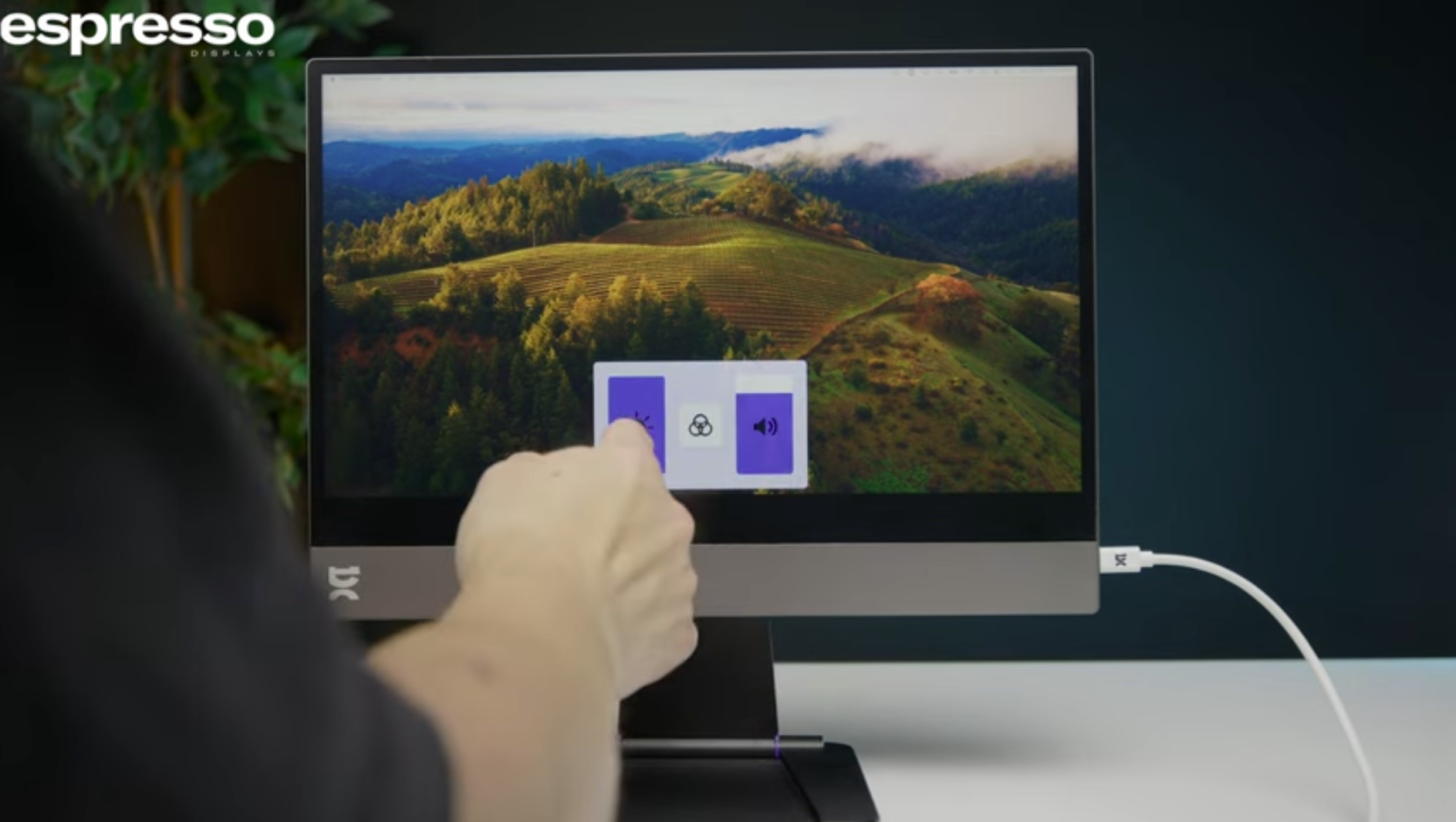


This guide will walk you through how to access and navigate the on-screen menu on your Espresso Touch Display. While the video demonstrates the Espresso 15 Touch, the same steps apply to all touchscreen Espresso displays. The on-screen menu allows you to adjust settings such as brightness, volume, contrast, and more.
Steps to Access the On-Screen Menu
- Swipe to Open the Menu:
- To bring up the on-screen menu, place two to three fingers on the bottom black bezel of the display.
- Swipe up from the bezel onto the screen. This gesture will open the on-screen menu.
- Navigating the Menu:
- Once the menu appears, you will see several sliders and options:
- Brightness Slider: Allows you to adjust the brightness of the display.
- Volume Slider: Adjust the volume of the built-in speakers (if available).
- Additional Settings: Located in the middle of the menu, these options allow you to select from four preset display settings according to your usage preferences.
- Once the menu appears, you will see several sliders and options:
- Adjusting Settings:
- To adjust any slider (brightness, volume, or contrast), simply press on the slider and move it up or down based on your preference.
- Contrast Adjustment:
- On the right side of the menu, you will find the Contrast Slider. Use this to modify the contrast levels of the display to suit your visual needs.
- Exiting the Menu:
- To exit the on-screen menu, you can either tap anywhere outside the menu or wait a few seconds for the menu to disappear automatically.
That’s it! You can now customise your Espresso Touch Display settings for the best viewing experience. Explore our other support guides for more tips on getting the most out of your espresso display.
If you still need help, please contact our support team at support@espres.so for further assistance. We’re always happy to help.
.ai.png)

.png)
